How to make an Excel Inventory Spreadsheet
-
Sheet 1
Cells: A2-A101
!!! warning [Warning]: This uses an older form of spreadsheets because the Pocket PC is to old to open .xlsx files and so on.
=IF(C2="","",IF(COUNTIF(Sheet2!$A$1:$A$1000,D2)>0,C2&" x"&COUNTIF(Sheet2!$A$1:$A$1000,D2),C2&" x0"))
=IF(C3="","",IF(COUNTIF(Sheet2!$A$1:$A$1000,D3)>0,C3&" x"&COUNTIF(Sheet2!$A$1:$A$1000,D3),C3&" x0"))
These formulas repeat all the way down the A column.
This Excel formula checks if the value in cell C2 is blank. If it is blank, it returns an empty cell. If C2 is not blank, it counts the number of times the value in cell D2 appears in a range of cells in Sheet2. If the count is greater than zero, the formula returns the value in C2 followed by " x" and the count of occurrences of D2 in the range. If the count is zero, it returns the value in C2 followed by " x 0". Essentially, this formula is used to concatenate the value in C2 with a count of how many times a specific value appears in a range of cells in “Sheet2”.
Cells: B2-B101
=COUNTIF(Sheet2!$A$1:$A$1000,D2)
=COUNTIF(Sheet2!$A$1:$A$1000,D3)
These formulas repeat all the way down the B column.
This Excel formula counts the number of times the value in cell D2 appears in the range A1:A1000 on a worksheet called “Sheet2”.
Cells: C2-C101
These cells are just the names of the items that you want to take inventory of.
Cells: D2-D101
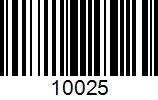
These cells contain the barcodes for items that you wish to scan using the scanner in Sheet2 of the spreadsheet. You can customize the barcodes for each item. For instance, you cannot scan a fork directly, but you can assign a unique barcode (10025) for the fork and scan it to count inventory.
Example of Code-128 Barcode with (10025) as the data.
Example of smaller Data Matrix Barcode with the same data (10025).

Sheet 2
Cells: A2-A1000
Use these cells to scan barcodes into the spreadsheet using your Pocket PC scanner. As you scan, the data will update automatically on “Sheet1”. You don’t need to follow any specific order while scanning.
